The Chat Room
(Next: Chat Room Commands)
|
|
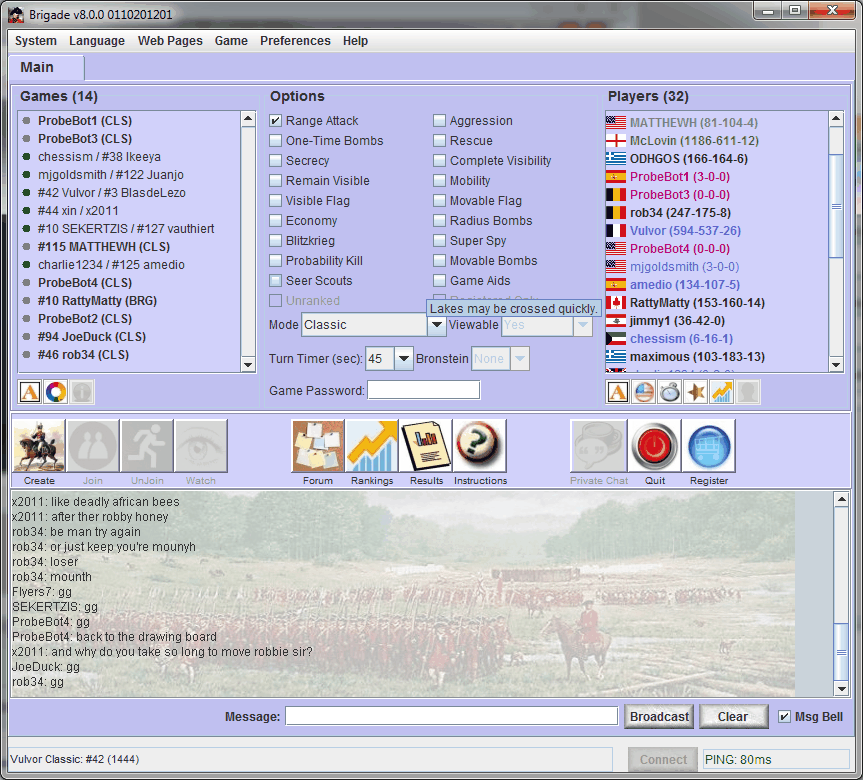
After logging into the game, you will enter the Brigade Chatroom. From there, you may talk with others in the room or join a game. Click on the "thumbnail" to your right for a preview of the Chatroom. Keep your eye on the status bar in the lower left corner of the window for various messages.
|
|
|
|
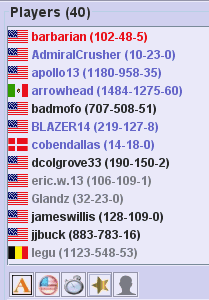
The right side of the chatroom contains a list of players. Each player typically has a flag to the left of his name to indicate his country. The player's record is shown in parenthesis as Wins-Losses-Ties. A player's country indicates the following:
- Black = active
- Grey = idle
- Blue = currently playing in a game
- Green = site moderator
- Red = site administrator
A player listed in BOLD is a registered site member, whereas non-bold is a trial member.
Players can be sorted using the buttons at the bottom of the player list. The sort can be: alphabetical, by country, by login time, or by role. Highlighting a player and clicking the "Profile" icon below the player list will bring up that player's profile webpage.
|
|
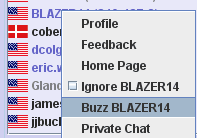
To block incoming messages, send an audible buzz, or leave feedback with regards to a specific player, mouse over the player's name and right click. A menu will appear which allows you to select these various options.
|
|
|
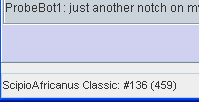
To see another player's rankings, simply move your mouse over the player's name in the list. Rankings will be shown at the bottom of the screen.
|
|

 Facebook
 Twitter
 Linked-In